Recording sessions move fast, and long pauses between takes can break the creative flow. When an artist is in the zone, stopping too often to organize clips or set up tracks can slow things down and kill the vibe. That’s why having a fast and reliable recording setup is so important. In this article, you’ll learn how to build vocal templates in Pro Tools that make recording quick and smooth. We’ll also look at how using automation tools can speed things up further while making the process more reliable at the same time.
The Challenge
The challenge in building a fast vocal recording workflow is finding the right balance between speed and reliability. Every take needs to be saved and organized in the right channel as quickly as possible, while also getting ready to record the next one without delay. That’s where automation and scripting tools come in. I use Keyboard Maestro and Stream Deck to run macros that turn tasks with many shortcuts and delays into just a few button presses.
Teezio Technique
Teezio, Chris Brown’s recording and mixing engineer, has shared how he sets up a fast and smooth recording workflow when working with Chris. In this video, he gives a quick overview of his technique. Since the explanation is brief, we will take a closer look at the details below.
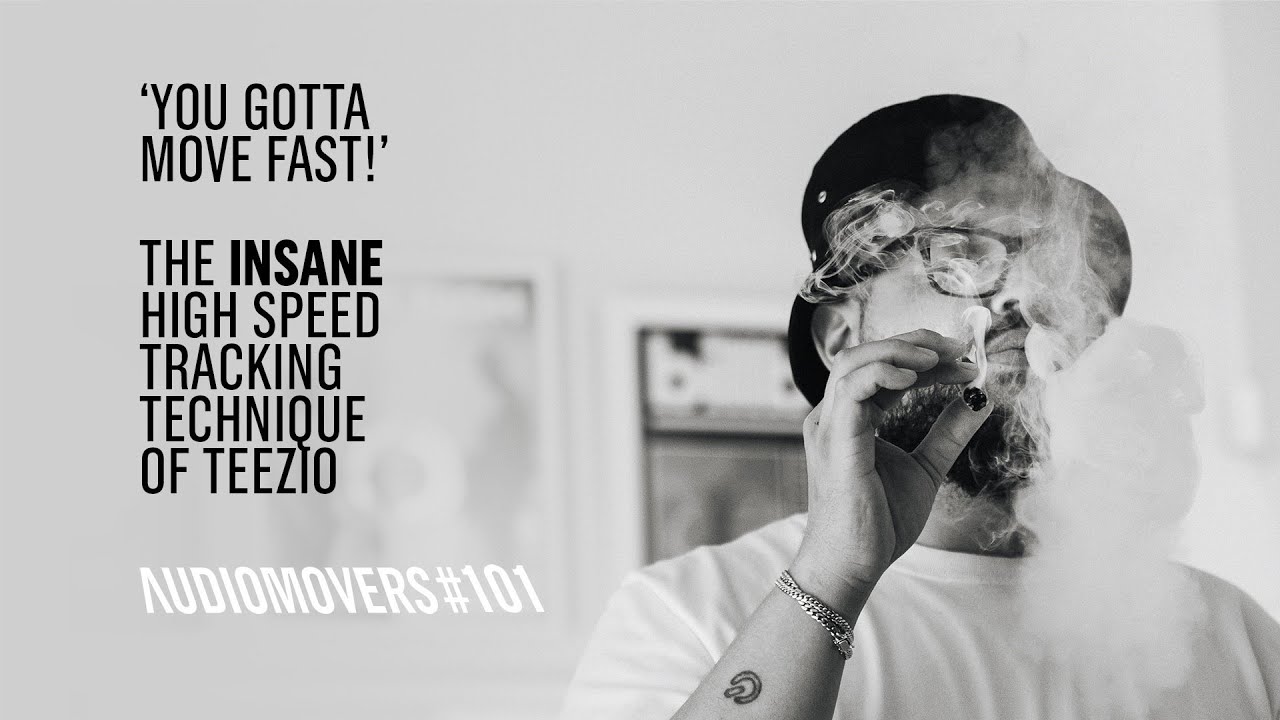
Here’s what he does:
- One Recording Track: All vocal takes are recorded onto a single audio track.
- Drag Good Takes: If the take is good, Teezio quickly drags the clip from the recording track to the target track (like lead vocal).
- Playlist for Re-Takes: If the take isn’t right, he playlists the clip instead of deleting it, then starts recording again.
- Pre-Roll for Punch-Ins: He uses a short pre-roll to give the artist a moment to get ready before jumping back in.
- Edit Clips While Recording: Teezio cuts and fades earlier clips while the next take is being recorded.
With lots of experience, Teezio has become lightning fast. His method helps Chris stay in the creative zone and finish songs quickly. But even if we are not as experienced, we still want to move just as fast. Instead of messing up shortcuts when we are in a rush, which can slow things down even more, we use macros. Macros run the right shortcuts in the correct order, with perfect timing in between, so the process stays quick and reliable.
But let’s take a look at the session setup before we dive into the macros.
Session Setup
Properly configuring your Pro Tools session before recording begins lays the foundation for a smooth workflow.
Pre-Roll
Setting an adequate pre-roll time (Option + Click in Pro Tools) allows the artist to mentally prepare before recording the next line or section. This prevents rushed performances and reduces the need for multiple takes due to insufficient preparation time.
Post-Roll
Set an extremely long post-roll when recording. If a clip is selected before recording, Pro Tools might limit the recording duration to the length of the selection. A long post-roll ensures that recording continues uninterrupted, even if a clip was inadvertently selected.
Quick Punch Recording Mode
Enabling Quick Punch mode is invaluable for saving takes when the record button is pressed too late. This mode continuously records in the background during playback, allowing Pro Tools to capture audio even before the official “punch-in” point.
Instrumental Track Level Adjustment
To ensure a comfortable monitoring level for the artist without clipping the recording input, it’s often necessary to adjust the level of the instrumental track. Lowering the clip gain or channel volume of the instrumental track can help match the typically lower recording volume of vocals. Using a VU meter configured to -18 dBFS can provide a consistent reference point for setting appropriate levels, aiming for peaks around 0 dB VU.
Recording Track Level (Monitoring)
You can turn up the level of the recording track for monitoring purposes. In Pro Tools, this adjustment is non-destructive and does not affect the actual recording level. Increasing the monitoring level helps the artist hear their vocal performance more clearly without changing the recorded signal.
Macros & Automations
You can set up a series of shortcuts with delays directly in Stream Deck, without using any extra software. However, I use Keyboard Maestro along with Stream Deck because it offers more powerful features. For example, Keyboard Maestro can click on screen elements or buttons that do not have shortcuts, and it can run AppleScript. This allows you to automate longer and more complex tasks.
Before we jump into building the macros, let’s break down and expand Teezio’s technique by adding a few extra steps to handle more tasks.
The macros should do the following steps:
- Stop the recording. (Optional)
- Make a playlist copy of the take to keep a well-organized backup of all recorded clips.
- Select and move the clip to the correct track. We will use separate buttons on the Stream Deck for each target track.
- Strip silence from the clip to make it more compact.
- Set fades on the clip.
- Go back to the recording track.
- Start the next recording (Optional)
We’ll use a modular setup, so each action can work on its own. This makes the macros easier to manage and gives us more control and flexibility.
Start and Stop Recording
Despite it being a single button press on the keyboard, I use macros to start and stop a recording. This allows me to have the entire process (the steps mentioned above) organized in the right order on my Stream Deck, which speeds things up.
Macro Setup in Keyboard Maestro:
- Record
- Action: Type a Keystroke → Key Pad 3 (Number 3 on the number pad)
- Right-click the Keystroke action, choose “Send To” and select Pro Tools.
- Stop Recording
- Action: Type a Keystroke → Space
- Right-click the Keystroke action, select “Send To” and then select Pro Tools.
Make a playlist copy or move to a playlist
After recording, we typically face one of two scenarios: either we keep the take and move it to the desired track, or we discard the take and start a new recording. Regardless of the decision, it’s recommended to always keep all recorded clips. Artists sometimes change their minds and ask for takes they initially rejected.
So we have two macros for this process: “Duplicate Playlist” and “Move to Playlist”.
The first macro, “Duplicate Playlist”, is for takes we want to keep. It copies the take(s) to the recording channel’s playlist while also leaving the original in the active playlist. This allows for movement to the target track later.
The second macro, “Move to Playlist”, is for unwanted takes. It moves the selected take(s) to a new playlist, removing them from the active playlist while keeping a backup.
Macro Setup in Keyboard Maestro:
- Duplicate Playlist
- Action: Type a Keystroke → ^⌘#
(This shortcut duplicates the current playlist) - Action: Pause for 0.3 seconds
- Action: Type a Keystroke → Return
- Action: Type a Keystroke → ^⌘#
- Move To Playlist
- Action: Select or Show a Menu Item
- Menu Title: Edit
- Submenu: Move Selection to…
- Menu Item: New Playlist
Move selected clip to target track
These macros are designed to send the clip you’ve selected to a specific track. This only works if you use a template for your recording sessions where your tracks follow a consistent naming system.
For example, in my template I use:
- 3 audio tracks for lead vocals
- 3 audio tracks for hook vocal leads
- 4 audio tracks for backing vocals (organized as 2 sets of Left & Right pairs)
- 2 audio tracks for adlibs
The number of tracks in your template will depend on how you work. However, it’s generally a good idea to have slightly more tracks than you think you’ll need. This way, you avoid having to manually drag recorded clips around later.
Once you’ve created the macro for one track, you can easily duplicate it and then simply change the track name within the macro’s settings. I’ll use my “VVX1-1” as an example. This stands for “verse vox 1-1”. The first “1” indicates the vocal sum number (for the first artist), and the second “1” means it’s the first of the three verse vocal audio tracks.
I also have the “AZ” button activated in my edit window. This lets me use single letters on my keyboard as shortcuts. If this feature is turned off for you, I highly recommend turning it on. If you prefer not to use it, you’ll need to add the ⌘ key (Command key on Mac) to the first and last action within your macro.
Macro Setup in Keyboard Maestro:
- Send Clip to VVX1-1
- Action: Type a Keystroke → X
- Action: Pause for 0.3 seconds
- Action: Select or Show a Menu Item
- Menu Title: Track
- Menu Item: Scroll to Track…
- Action: Insert Text by Typing: VVX1-1
- Action: Type a Keystroke → Enter
- Action: Pause for 0.3 seconds
- Action: Type a Keystroke → V
Strip Silence and set Fades
Once the clip is on the correct track, our next step is to remove any silent parts (strip silence) and apply fades to all the clips. This is where we’ll use a special action in Keyboard Maestro called “Click at Found Image”.
Because we need to click the “Render” button within the strip silence window, we’ll also have the macro remember your mouse’s current location before it clicks. After the strip silence process is finished, the macro will automatically move your mouse cursor back to where it was. This keeps your workflow smooth.
It’s important to know that Pro Tools’ built-in strip silence tool doesn’t have a way to save your custom settings as plugin presets. However, there’s a simple workaround: you set up your preferred strip silence settings directly in your session template. To do this, open the strip silence window in your session template, adjust all the settings exactly how you want them, close the window, and then save your session template. These settings will now be the default every time you use this template.
For setting up your fades, you can define your preferred default fade lengths and shapes within Pro Tools’ preferences. You can find these settings by going to the main menu bar at the top of your screen and clicking: Pro Tools > Settings > Editing tab > Fades section.
Macro Setup in Keyboard Maestro:
- Strip Silence
- Action: Set variable to text
- Set variable: MousePosition
- to: %Calculate%MOUSEX()%, %Calculate%MOUSEY()%
- Action: Type a Keystroke → ⌘U
- Action: Pause for 0.5 seconds
- Click at Found Image: Use an image of the “Strip” button and place it in the image box. Since resolutions and color profiles may vary from user to user, it works best if you take a screenshot of the button yourself. You can do that with ⌘⇧4.
- Action: Pause for 1 second
- Action: Type a Keystroke → F
- Action: Type a Keystroke → ⌘U
- Action: Use Variable
- Use variable: MousePosition
- Dropdown: “to set the mouse location”
- Action: Set variable to text
Scroll to recording track
Now that we’ve successfully moved the clip to the correct track, removed any silence, and added fades, we’re ready to continue recording. To quickly get back to where we were, we use the “Scroll to Track” menu item again. This will bring our view back to where we finished the last recording, allowing us to seamlessly continue.
Macro Setup in Keyboard Maestro:
- Scroll to REC
- Action: Select or Show a Menu Item
- Menu Title: Track
- Menu Item: Scroll to Track…
- Action: Insert Text by Typing: REC
- Action: Type a Keystroke → Return
- Action: Select or Show a Menu Item
Download Macros
You can download this set of Keyboard Maestro macros for a faster setup below. Please note that you might need to take a new screenshot of the “Strip” button on the strip silence plugin due to different screen resolutions or color profiles.
Stream Deck
The last step is to map these macros to your Stream Deck. For the easiest setup, use the KMLink Stream Deck plugin. It lets you select your macros from a simple dropdown menu, without needing to set up triggers in Keyboard Maestro.
This is how I set up mine:

The “TRACKS” button is a folder, so I can select the target track.

Important for speed: Make sure to activate the “Auto Exit” option on the Stream Deck folder where you’ve placed these macros. This will automatically take you back to your main Stream Deck layout after you select the target track, keeping your workflow fast.
![]()
That’s it! This workflow will help you record faster, offering a reliable and automated process without sacrificing flexibility.


